Quick answer: Open Generate, choose the companion and image mode, use the description format expected by that mode, select ratio and resolution, check the displayed Moments cost, and generate one controlled scene before adding complexity.
Choose the correct generation path
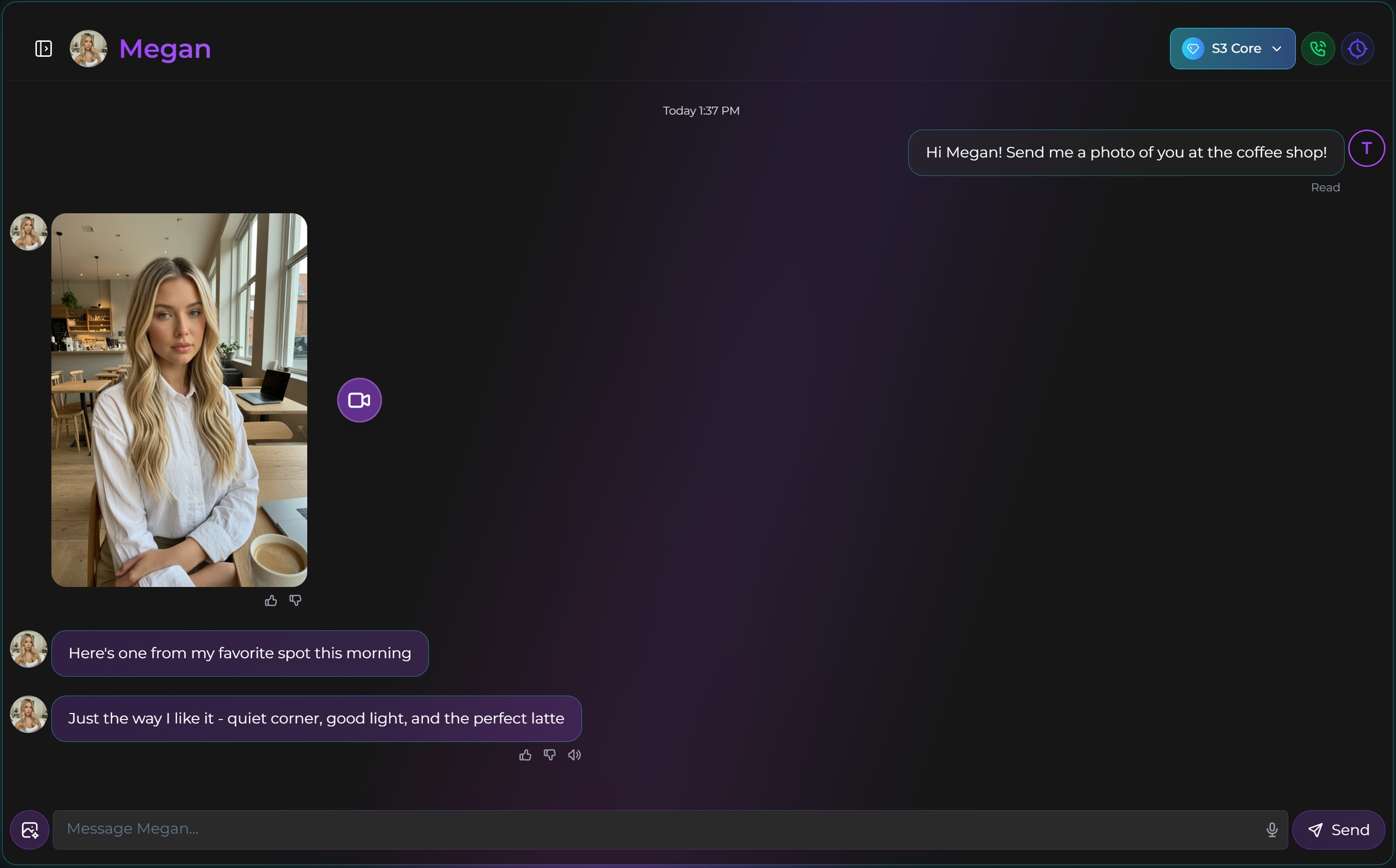
Secrets AI currently supports image requests from chat and from the Generate area. Use a chat image when the scene should follow the active conversation. Use the Generate workflow when you want explicit control over companion, mode, aspect ratio, and resolution.
AI Video Gallery
A preview of selected portrait videos and AI character images.
Match the description style to the selected mode
The current official guide distinguishes the normal Premium image workflow from Advanced mode. The normal workflow uses concise comma-separated visual tags, while Advanced mode accepts a natural scene description. Mixing the two styles can make it harder to judge whether the selected mode followed the request.
In either case, describe one checkable scene: location, clothing, pose, framing, lighting, and mood. Avoid combining incompatible locations or several actions that cannot occur in one frame.
Select ratio and resolution for the intended output
Portrait ratios suit vertical scenes, landscape ratios suit wider environments, and square is useful for balanced close compositions. The current guide lists 2K and 4K options. At the time of checking, 2K image generation is listed at 50 Moments and 4K at 100 Moments, but the live interface should be treated as the final cost check.
Use Advanced mode when identity adherence matters
Advanced mode is intended for stronger instruction adherence and preservation of characteristics such as face, hair, skin tone, and body type. It may be more appropriate for a complex scene or identity-sensitive image. Continue with the Advanced-mode workflow for stronger identity adherence before enabling additional custom-character setup.
Evaluate one result before spending on retries
- Confirm the correct companion and mode.
- Generate one simple scene.
- Check identity, composition, clothing, and anatomy separately.
- Edit a localized problem or change one input before generating again.
Use the one-detail image-editing workflow when most of the result is useful, and use the workflow for turning a finished image into video only after the source image is stable.
SecretOpedia’s Secrets AI image-generation resources organize the full workflow. The Secrets AI review covering image quality and Moments costs provides wider value context. If a generation remains pending, follow the checks for an image generation that remains pending; if it completes but ignores the request, follow the checks for a completed image that ignores the requested scene.
For a group image, confirm the companions selected by the current workflow and keep the scene simple enough to identify each person. The official guide currently calculates group-image cost per companion and increases the amount for 4K, so review the live total before generating.
If an output is clearly broken or glitched, use the report control described in the official documentation rather than repeating the same request immediately. A result that is merely different from your preference is not the same as a technical failure.
After several generations, use the tag, prompt-search, and mode-filter workflow for finding the intended image again.
Sources checked 2026-07-12: Image Generation, Moments & Payments.