

Quick answer: Open a generated image, choose Edit, request one precise change, and state which important parts should remain unchanged. Use editing when the composition is already useful; generate a new image when the whole scene must change.
Open the editor from the image you want to preserve
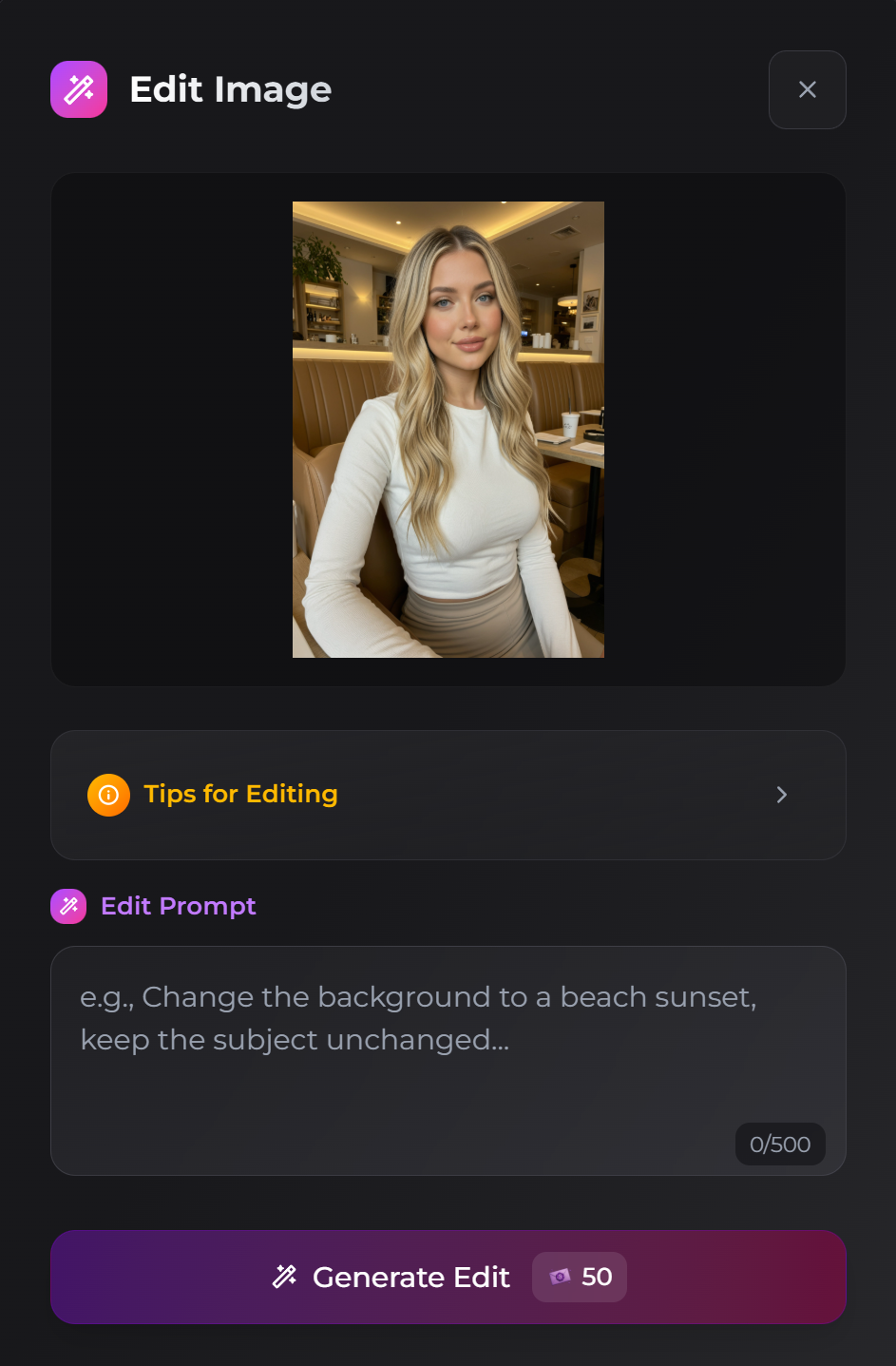
- Select the generated image.
- Choose the wand or Edit control.
- Describe the requested change.
- Generate the edited copy.
- Compare it with the original before editing again.
AI Video Gallery
A preview of selected portrait videos and AI character images.
Request one localized change
Name the exact element and operation, such as removing a hat, changing one food item, or adding matching earrings. Keep the instruction focused on one localized change rather than implying that the interface provides a manual masking area.
When several objects are visible, avoid vague references such as “it” or “that.” Name the object, location, color, or side of the image.
State what should remain stable
Identify the details that matter most: face, expression, pose, background, lighting, or composition. This does not promise pixel-identical preservation, but it gives the system a clearer constraint and makes the edited result easier to evaluate.
Separate unrelated changes
Do clothing, background, pose, and lighting in different edits. When several categories change together, it becomes difficult to identify which instruction caused identity drift or an unwanted composition. Save the strongest intermediate result before requesting another change.
Know when to start a new generation
Editing is appropriate when most of the image already works. Generate a new image when subject, setting, pose, and composition all need to change. Use the image-generation workflow for creating a new base image, or use the Advanced-mode workflow for identity adherence when the companion’s likeness is the main concern.
SecretOpedia’s Secrets AI image-editing resources connect generation and editing. The Secrets AI review covering image editing and media costs provides broader context. If the Edit control is missing, an edit remains pending, or the new result disappears, record the source image, instruction, time, and Moments change before contacting support. Do not treat a broader image-generation article as an equivalent fix unless it describes the same symptom.
The current official guide describes image editing as SFW-only and lists 50 Moments per edit. Review the displayed cost before every action because access and pricing can change. A second correction is another generation action, so several small edits can cost more than producing a better base image.
Keep the original image available until the edited result has been checked at full size. Compare face, hands, clothing, background, and lighting rather than looking only at the requested object. This catches unintended changes before the edited copy is used for video or further media work.
Use a simple naming habit outside the editor when several attempts exist, such as noting the base image and the single change made. The interface may show several similar results, and a clear record prevents an older edit from being mistaken for the latest approved source.
Sources checked 2026-07-12: Image Editing, Image Generation.