Quick answer: Video generation starts from an existing image. Select the video control, choose the available mode and settings, describe movement rather than a replacement scene, review the Moments total, and generate a short test first.
Confirm current plan access and source image quality
At the time of checking, the official guide lists video generation for Premium and Ultimate plans. Verify the current subscription screen before relying on access. Choose a source image with a clear subject, stable face, and enough visual space for the requested movement.
AI Video Gallery
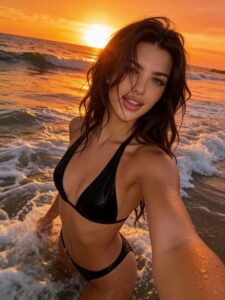
A preview of selected portrait videos and AI character images.
Open the video generator and review every setting
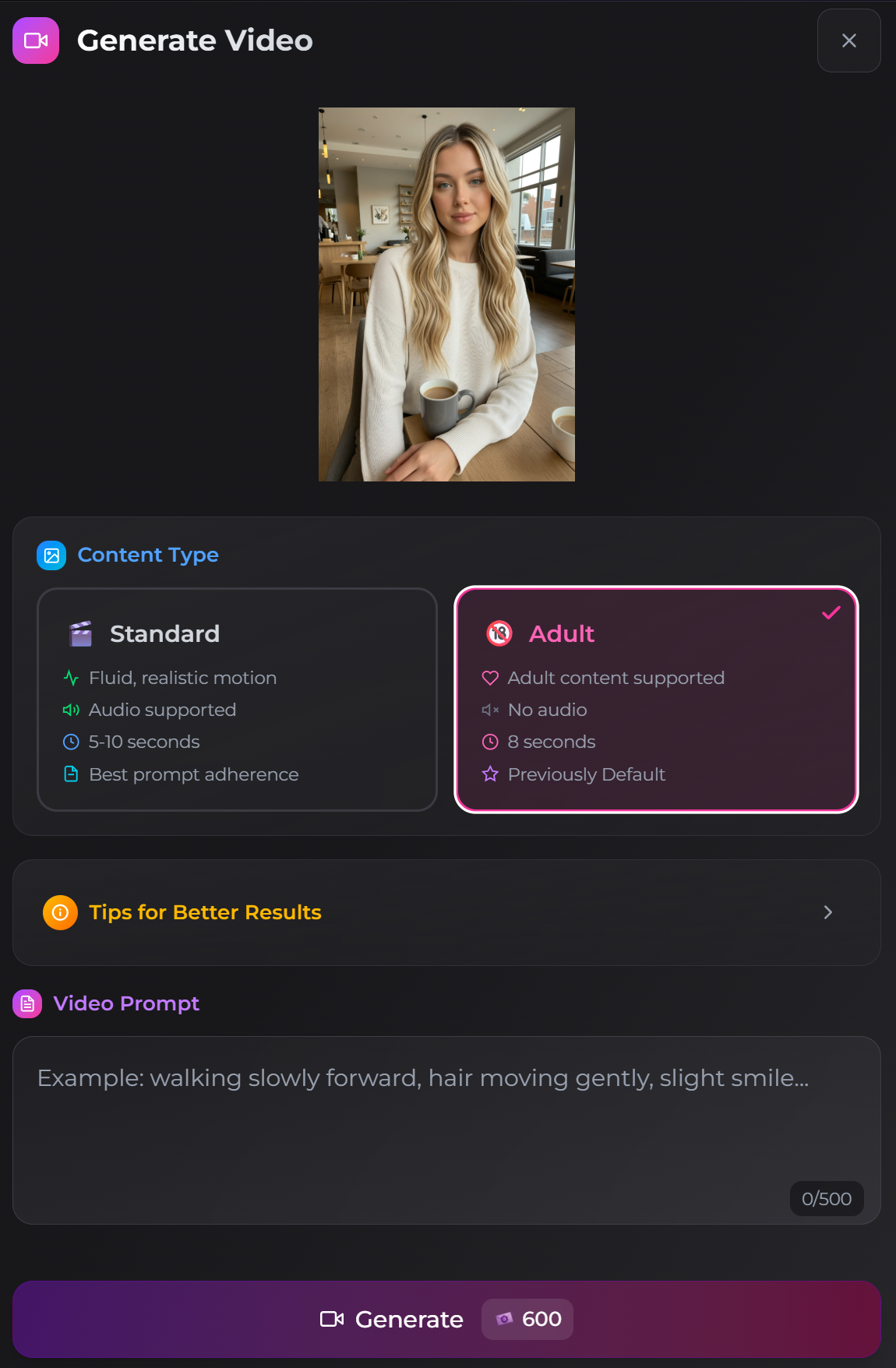
- Select a generated image.
- Choose the video icon.
- Select Standard or Adult mode when available.
- Choose resolution, duration, and audio options.
- Describe the intended motion.
- Review cost and generate.
Describe movement, not a completely new image
Request actions such as walking forward, hair moving in a breeze, a slight smile, a slow camera push, or changing light. Avoid asking the video step to replace the location, clothing, pose, and character identity at the same time.
Choose Standard or Adult settings deliberately
The current Standard workflow lists 480p, 720p, and 1080p; durations of 5, 8, and 10 seconds; and audio on or off. The official page currently describes Adult mode as a legacy 720p, 8-second workflow. Available settings and policy controls can change, so check the live interface.
Cost depends on mode, resolution, duration, and audio. At the time of checking, adding audio to Standard video doubles the cost shown for the same resolution and duration. Use the live confirmation as the final amount.
Test the shortest useful clip before scaling up
Start with the lowest practical duration and a simple motion. Check face stability, body movement, camera behavior, and audio separately. Review the Moments calculation for resolution, duration, and audio before running several attempts, and use the image-generation workflow for creating a stable video source when the source still needs correction.
SecretOpedia’s Secrets AI video-generation resources connect media workflows, while the Secrets AI review covering video quality and Moments costs provides wider context. If the job remains processing, follow the checks for a video job that remains processing; if a completed clip has missing or incorrect sound, follow the checks for a completed video with missing or incorrect audio.
Before confirming, verify that the source image belongs to the intended companion and that the current motion instruction does not conflict with the pose. A seated figure, close crop, or crowded group can limit the movement that looks natural.
After completion, review the opening frame, face consistency, limb movement, camera motion, and audio separately. Keep the job details and visible Moments change until the output has been evaluated, especially when the clip will be used as the source for another workflow.
Sources checked 2026-07-12: Video Generation, Subscription Tiers & Limits, Moments & Payments.