
Quick answer: Open the New Chat menu, switch to Group Chat, select at least two companions, name the conversation, and configure memory for each member. At the time of checking, the official guide lists Group Chats as an Ultimate-tier feature.
Create the group
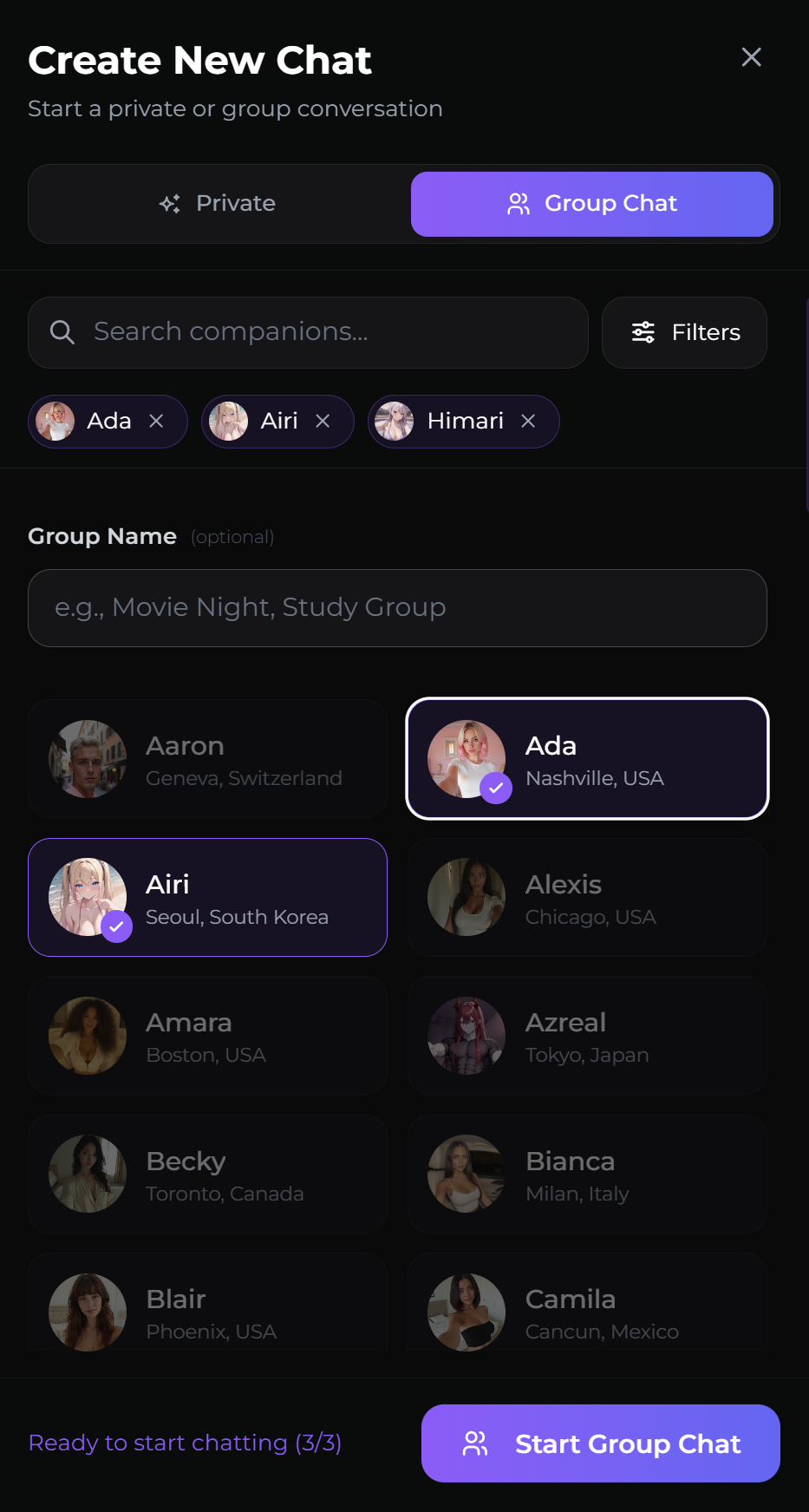
- Select the plus button in the chat list.
- Switch from Private to Group Chat.
- Select at least two companions.
- Add an optional group name.
- Review each member’s memory choice.
- Start the group chat.
At the time of checking, the official page labels Group Chats as an Ultimate-tier feature, requires at least two companions, and describes a maximum of three companions per group. Check the live creation modal before planning a scene because access rules can change.
AI Video Gallery
A preview of selected portrait videos and AI character images.
Set memory per companion
Memory is not one setting for the whole group. Each companion can use private group memory or a shared Memory Group from that companion’s one-to-one chats. This allows one member to continue an existing storyline while another starts fresh.
Once a Memory Group has been assigned to a group member, the official guide says it is locked and cannot be changed. Plan the scope before the conversation becomes important.
Understand current member limits
Group members are set when the chat is created. The current documentation says you cannot add or remove companions later; create a new group when the membership must change. Confirm the selected members and memory scope before the first important scene.
Use group images and voice carefully
Group chats can create group images from conversation context. The system chooses which companions appear. Group voice calls are currently described as beta, so behavior can change and should be verified in the current interface.
Keep the conversation readable
- Address a companion by name when a request is specific.
- Use a clear scene and group purpose.
- Avoid conflicting instructions to several companions in one message.
- Check the sender label before replying.
Use the Multiple Chats workflow for per-companion private or shared memory for continuity and the multi-companion image-generation workflow for group image behavior.
Browse SecretOpedia’s Secrets AI Group Chat resources for related setup, memory, and media tutorials. The Secrets AI review covering Group Chat access and value explains the feature in the context of current plan access and product value.
If the group will not load, members imitate one another, or memory resets after editing, follow the checks for a Group Chat that will not load or retain its setup.
Run a short setup test before a long scene. Address each companion once, confirm the sender labels, and ask a question that reveals whether the intended memory scope is active. This catches a wrong member selection or memory assignment before the storyline becomes difficult to recreate.
For a voice session, review the microphone, permission, and Moments checks for a short Group Chat voice call first. Group voice is described as beta, and per-minute Moments use still matters. Start with a short call to verify turn-taking and output device behavior.
Keep the first group scene simple: one location, one topic, and a clear turn for each companion. Complex multi-character action makes it harder to tell whether a response problem comes from member identity, shared context, or the scene request itself. Once names and turn-taking are stable, increase the narrative complexity gradually.
Sources checked 2026-07-12: Group Chats, Multiple Chats, Image Generation, Audio Calls.