

Quick answer: Treat chat mode, Spice Level, and reply style as three separate controls. Choose the live model or mode available to your account, set Mild, Medium, or Spicy for content intensity, then test the change before adjusting SMS or Paragraph formatting.
Separate the three controls before changing anything
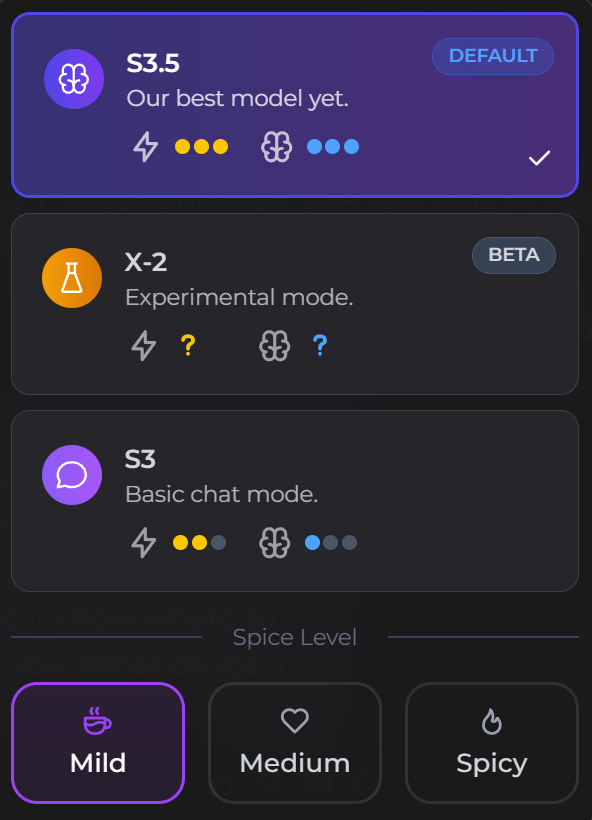
The current interface can show a model or chat-mode selector, a Spice Level, and a reply-style control. They do different jobs:
- Chat mode or model: selects the response system offered in the live interface.
- Spice Level: sets the intended intensity of the conversation.
- SMS or Paragraph: controls whether replies arrive as several short messages or one longer response.
Use the comparison between several short replies and one detailed response when the problem is formatting rather than tone.
AI Video Gallery
A preview of selected portrait videos and AI character images.
Choose the Spice Level for the intended conversation
The official Chat Features page currently describes Mild as suitable for friendly everyday conversation, Medium for romantic or emotionally deeper interaction, and Spicy for more open adult-oriented conversation. These labels describe intended intensity, not a promise that every reply will have the same tone.
Adult-oriented settings still operate within platform rules. Do not treat a higher level as permission to ignore age, consent, likeness, or moderation restrictions.
Use live mode labels instead of old names
Secrets AI has changed model and mode names over time. Older documentation or screenshots may mention Core, Edge, S3C, or S3E, while the current selector may show different labels. Base the decision on the options visible in the account now, not on an old article that assumes a retired name is still available.
Start with the default mode when establishing a baseline. Change to another live option only when comparing a specific behavior such as pacing, instruction following, or conversation style. The public documentation does not provide a stable promise that one mode will be best for every companion or scenario.
Change the current chat or the default for future chats
Use chat settings when the change should affect one existing conversation. Use the account-level workflow for setting defaults on new conversations when the same preference should apply going forward. A default change does not necessarily rewrite the behavior already established in an older thread.
For the remaining controls, the workflow for roleplay actions, message editing, limits, and text-to-speech explains where they fit without mixing them into mode selection.
Run a controlled comparison
- Record the companion, active chat, mode, Spice Level, Persona, and reply style.
- Send one neutral request that can be repeated safely.
- Change only the mode or only the Spice Level.
- Send a comparable request and inspect the next several replies.
- Keep the setting only when the difference helps the intended conversation.
A Spice change in an established chat can take several messages to influence the tone because earlier conversation history still matters. Use a concise OOC instruction for a specific behavioral correction rather than switching several controls at once.
Diagnose the right failure state
If the selected settings are visible but replies remain unusually short, use the checks for responses that stay too short after the reply-style change. If the companion repeats phrases or loops through the same idea, use the checks for repeated wording and conversation loops.
SecretOpedia’s Secrets AI chat-mode and conversation-control resources connect this decision with related workflows. The Secrets AI review covering chat controls, plan access, and conversation value provides broader product context.
Sources checked 2026-07-12: Chat Features, User Settings, Changelog.